





























Vira AIQira AI

Two AIs. One builder. Your full-stack app, from conversation.

Qira builds your entire frontend while Vira builds your backend workflows and database tables - both from plain language. Describe what you need and watch your app come to life, end to end.

Frontend by Qira Backend by Vira Database tables One-click deploy

Meet the two minds behind your app

Qira and Vira work side by side. Qira designs and builds everything your users see. Vira wires up everything that runs behind the scenes.

Qira

Qira

Frontend Builder

Qira creates full frontends for your applications - pages, components, layouts, and styling. She works from your instructions and iterates with you until every screen is exactly right.

Live preview of every change
Full code access & editing
Publish & deploy in one click
Vira

Vira

Workflow Architect

Vira builds your complete backend - full workflows and database tables. Describe the logic you need and she designs the nodes, connections, and data model behind it.

End-to-end workflows
Database tables & schema
REST endpoints & connections

Qira builds your full frontend.

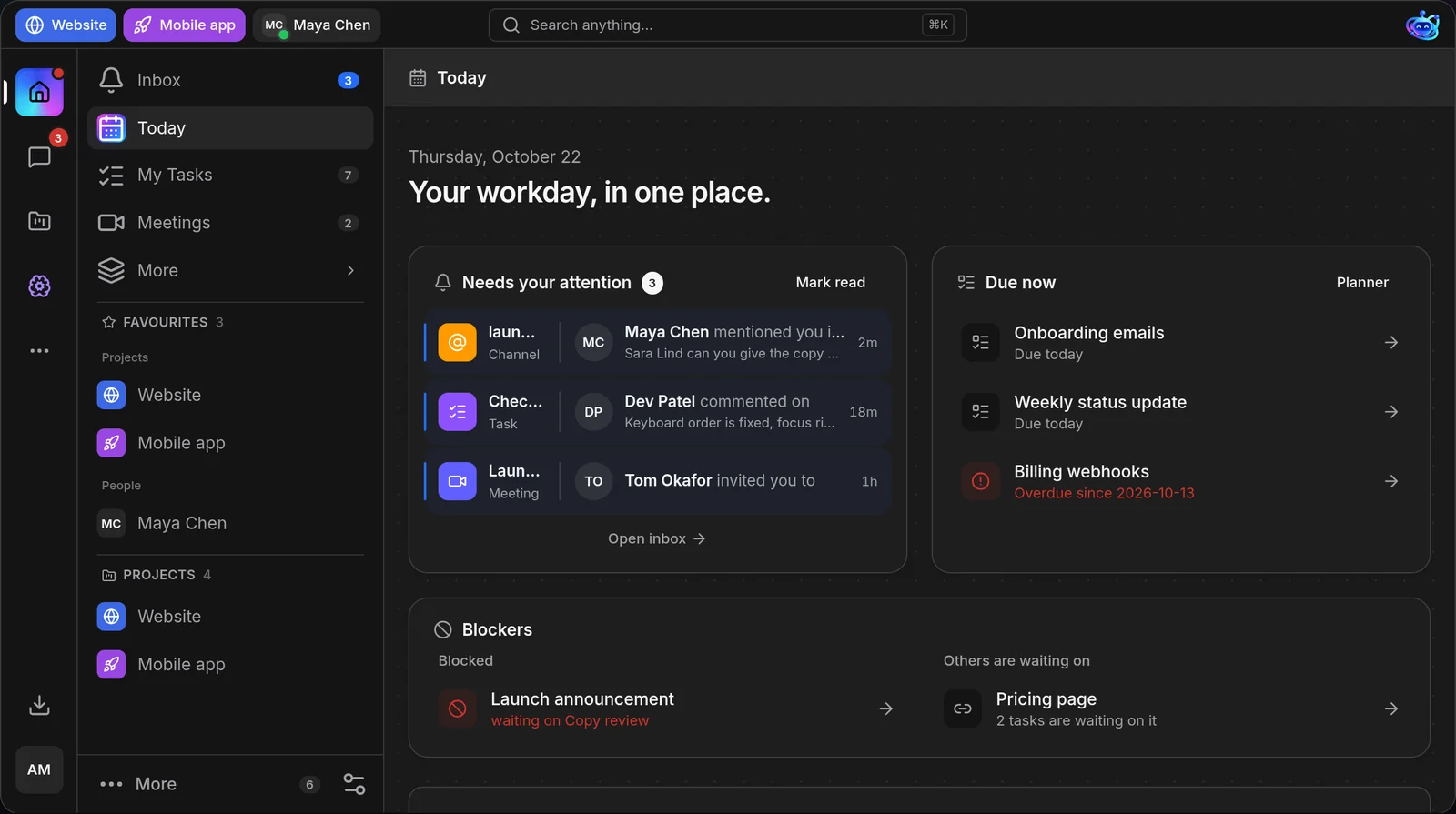
Qira's workspace is split in two: the Chat on the left where you give instructions, and the Builder on the right where your app takes shape live.

QiraQiraDescribe the app you want to build.
Build

Describe your app and it comes to life. Iterate on the design as you go.

Building from a description
Building pages and components
Iterating on designs and layout
Build a landing pageCreate a dashboardAdd authentication
What would you like to build today?
Preview
Code
app-myproject.ubex.ai
Publish
1,284Users
€12.4kRevenue
94%Uptime

To use Qira, create an Interface project - Qira is available there as your frontend builder.

Talk to Qira like a colleague.

The chat is where you give Qira instructions. From simple requests to full project initialization - everything starts here.

@ Mention Anything

Reference your project resources directly in chat. Type @ and pick from Files, Workflows, Vault keys, Database tables, or My Data. Qira understands the context and uses them in what it builds.

FilesWorkflowsVault KeysDatabaseMy Data

Project Instructions (.qira folder)

Initialize Qira with a set of instructions that it follows without question for the entire project. Qira creates a .qira folder where these rules are stored and references them on every request.

📁 .qira/
  ├── instructions.md
  ├── style-guide.md
  └── rules.md

Upload Files

Upload designs, mockups, reference images, or documents directly in chat. Qira uses them as context for what it builds.

Context Memory

Use the % symbol to control context memory. Qira remembers what matters and forgets what doesn't - you decide what stays in scope.

LLM Model Selector

Choose which AI powers Qira. Switch between ChatGPT, Gemini, Claude Opus, Claude Sonnet, GLM, DeepSeek, MiMo, and Kimi anytime.

Recent Conversations

See every prompt you've sent since the beginning of the project. Jump back to any previous conversation to review context or continue where you left off.

Your app, live. Full control.

The main window shows everything Qira builds - preview it live, edit the code, publish, and manage versions. All from one toolbar.

Preview
Code
Files
src
App.jsx
index.css
Dashboard.jsx
assets
logo.svg
hero.png
package.json
1import { useState } from'react';
2import { Card } from'./components';
3
4export functionDashboard() {
5  return (
6    <divclassName="dashboard">
7      <Cardtitle="Users" />
8    </div>

Live Preview

See exactly what Qira is building in real time. The preview updates instantly as changes are made.

Code View

Browse the full project file structure, open any file, and make manual edits. Your code, your way.

Device Switcher

Switch between Desktop, iPad, iPhone 17/16/15, Samsung Galaxy S24, Xiaomi 14, and Generic Mobile to see how your app looks on every screen.

Publish / Republish

One click to go live. When you republish, a modal asks what you changed - creating a version entry for your history.

Version History

Every publish creates a version. Go back to any previous version if needed. Each version includes the description you wrote when publishing.

Refresh

Refresh the preview without reloading your browser. Quick preview reset with one click.

Click anything. Change it instantly.

The Select Element tool lets you visually pick any element on the page and modify it - through chat, code, or the built-in CSS editor.

1

Select an element

Click the Select Element tool in the toolbar, then click any element on the live preview. It highlights and gets selected.

2

Bottom tooltip appears

A tooltip bar appears at the bottom showing the selected element's code reference, plus two action buttons.

Attach to Chat
<div class="card-title">
Open in Code
3

Edit visually or via Qira

A CSS panel opens on the right with all style properties - size, spacing, colors, typography, borders, shadows. Edit anything visually. Or use 'Attach to Chat' to ask Qira to change it for you.

Font Size16px
Color#ffffff
Padding12px 24px
Border Radius8px

Full code access. Zero restrictions.

Edit files manually, search across your project, upload images, and use the right-click context menu for quick actions.

Ask Qira

Select code, right-click, and choose 'Ask Qira' - Qira modifies the selected code based on your instruction.

Manual Editing

Open any file and edit it directly. Full code editor with syntax highlighting and all standard keyboard shortcuts.

Search All Files

A search bar next to the Files title lets you search across every file in your project instantly.

Upload Images

The upload button in Code View (next to the Files title) lets you upload images that go directly into the assets folder.

Command Palette

Access the full command palette from the right-click menu for advanced actions and quick navigation.

Change All Occurrences

Right-click any selected text and choose 'Change all occurrences' to bulk-rename across the file instantly.

Domains, themes, and deploy.

Configure your app's deployment, connect custom domains, and manage themes - all from the settings panel.

Settings
DOMAIN
app-myproject.ubex.ai
SUBDOMAIN
app-BackFlow
.ubex.ai
DEPLOY
THEMES

Custom Domain & Subdomains

Connect your own domain or create unlimited subdomains directly from Ubex. Set up your domain in Settings (left sidebar, above your profile), add CNAME and TXT records to your domain provider, verify, and deploy.

Add your domain in Settings → Domain tab
Copy CNAME and TXT values to your domain provider
Press Verify Domain and wait for propagation
Create subdomains directly from Ubex - type name, save, deploy

Deploy

One-click deploy to your configured domain or subdomain. Your app goes live instantly with SSL included.

Themes

Use one of Ubex's built-in themes or create your own. When using themes, all colors update automatically across every element - change once, update everywhere. No manual find-and-replace needed.

Vira builds your backend & database.

Same interface, different superpower. Chat with Vira on the left, and watch her assemble complete workflows and data tables on the canvas to the right.

ViraViraWhat are we building today?
Vibe

Chat first, then build. Explore ideas and iterate as you discover needs.

GREAT FOR:
Exploring new workflow ideasIterating on complex automationsBuilding step by step with guidance
Build a customer support agentCreate an onboarding flowCreate an API endpoint
What would you like to build today?
Claude Opus Ask Vira
support-agent-flow
Flow StartAPI TriggerData ValidatorvalidateInputTRUEFALSESimple Output400 Bad RequestConditionIFELSEModelClaude OpusCodetransformDataDatabasewriteDataHttp RequestsendWebhookSimple Outputresponse

Describe

Tell Vira what backend logic you need - from the interface chat or a dedicated project.

Vira Builds

Vira creates workflows, database tables, connections - everything wired automatically.

Verify

Inspect the workflow, check the logic, confirm everything is correct.

Deploy

Save the endpoint and use it. Give it to Qira in the frontend chat - it connects it for you.

All Ubex nodes
My Data tables
Vault & secrets
REST endpoints

You can tell Qira directly from the Interface chat to have Vira create the backend workflow too. Together they create tables, endpoints, connections - everything needed for the feature to work end to end.

How to access Vira & Qira

1

Create a new Interface project

2

Qira and Vira are ready in the chat panel

3

Start describing what you need

Start building with Vira & Qira

Describe what you need. Qira builds the frontend, Vira builds the backend - and it all deploys together.

No credit card required · Free tier included

Hi there 👋

How can we help you today?